Mac recording guide
How to record system audio on Mac
macOS 27 or later: check “Include System Audio” in QuickTime or ⇧⌘5.
macOS 14–26, or audio-only, live meters and transcripts: use SceneCap—no BlackHole needed.
Updated November 28, 2026 · 3-minute read
Method 1: built into macOS 27 (QuickTime / ⇧⌘5)
- Press
⇧⌘5, or choose File → New Screen Recording in QuickTime. - Click Options and check Include System Audio under Capture.
- To record your voice too, pick a device under Microphone and wear headphones.
- Click Record. To stop, click the menu-bar stop button or press
⌘⌃Esc.
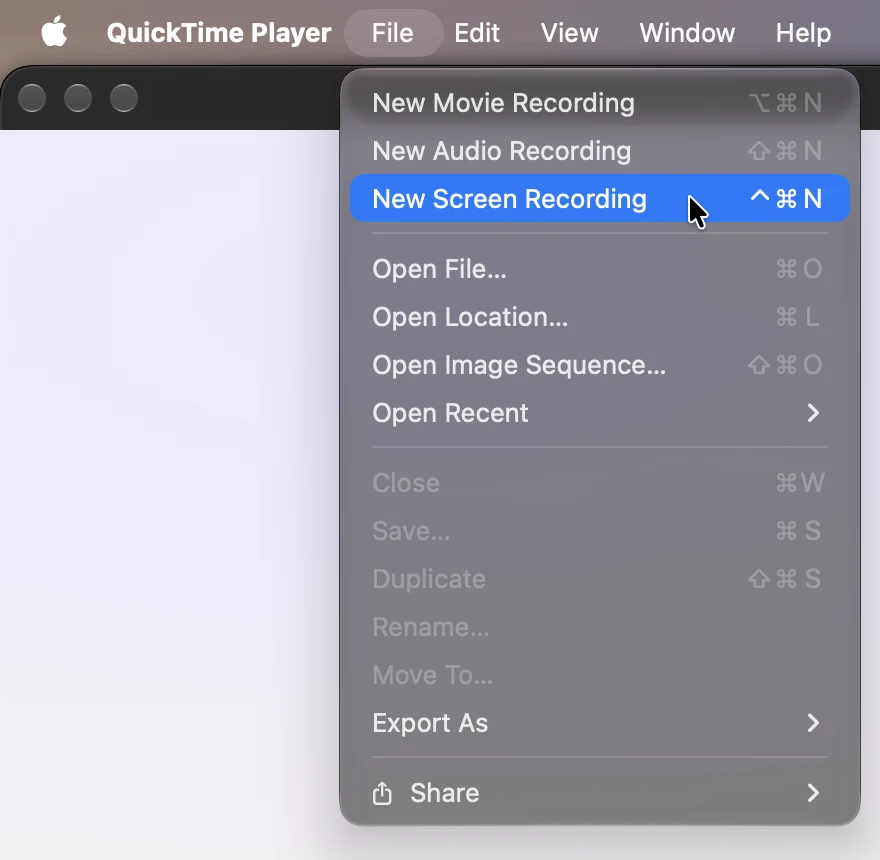
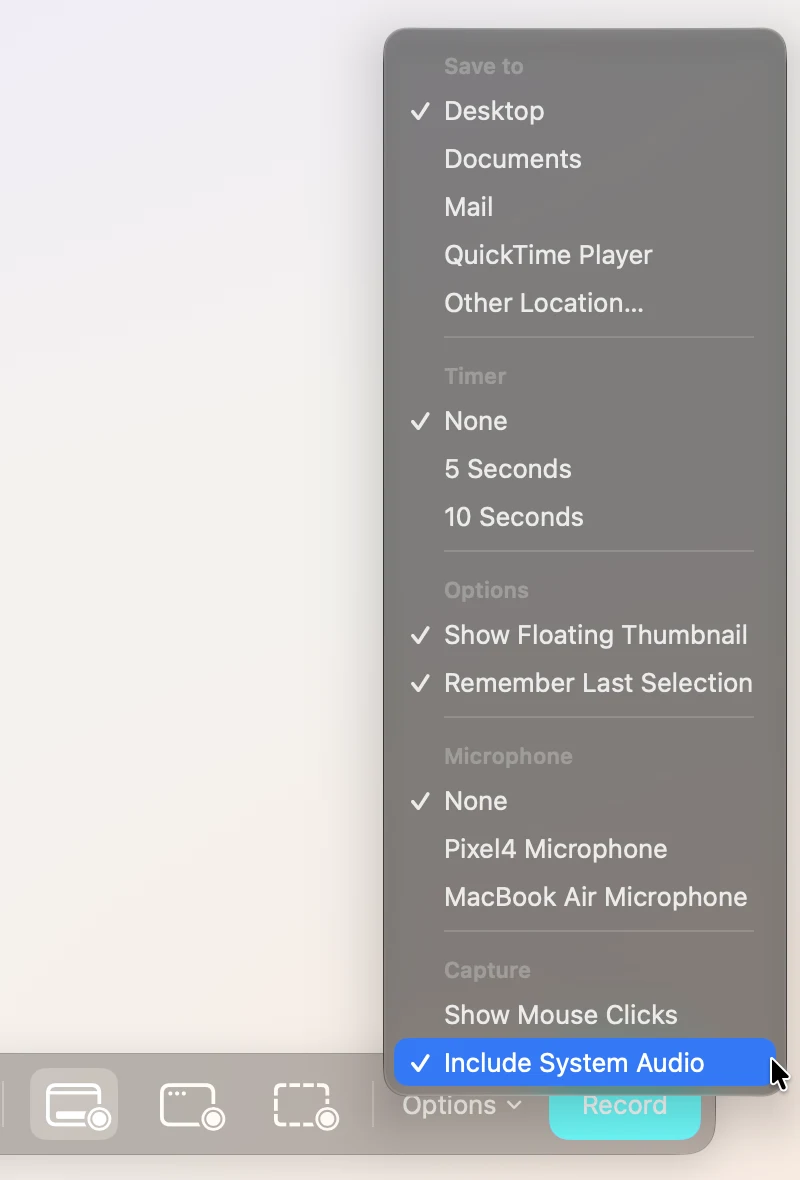
Limits: it always records the screen, can’t pause, and has no audio meters or transcripts.
Method 2: SceneCap (macOS 14 and later)
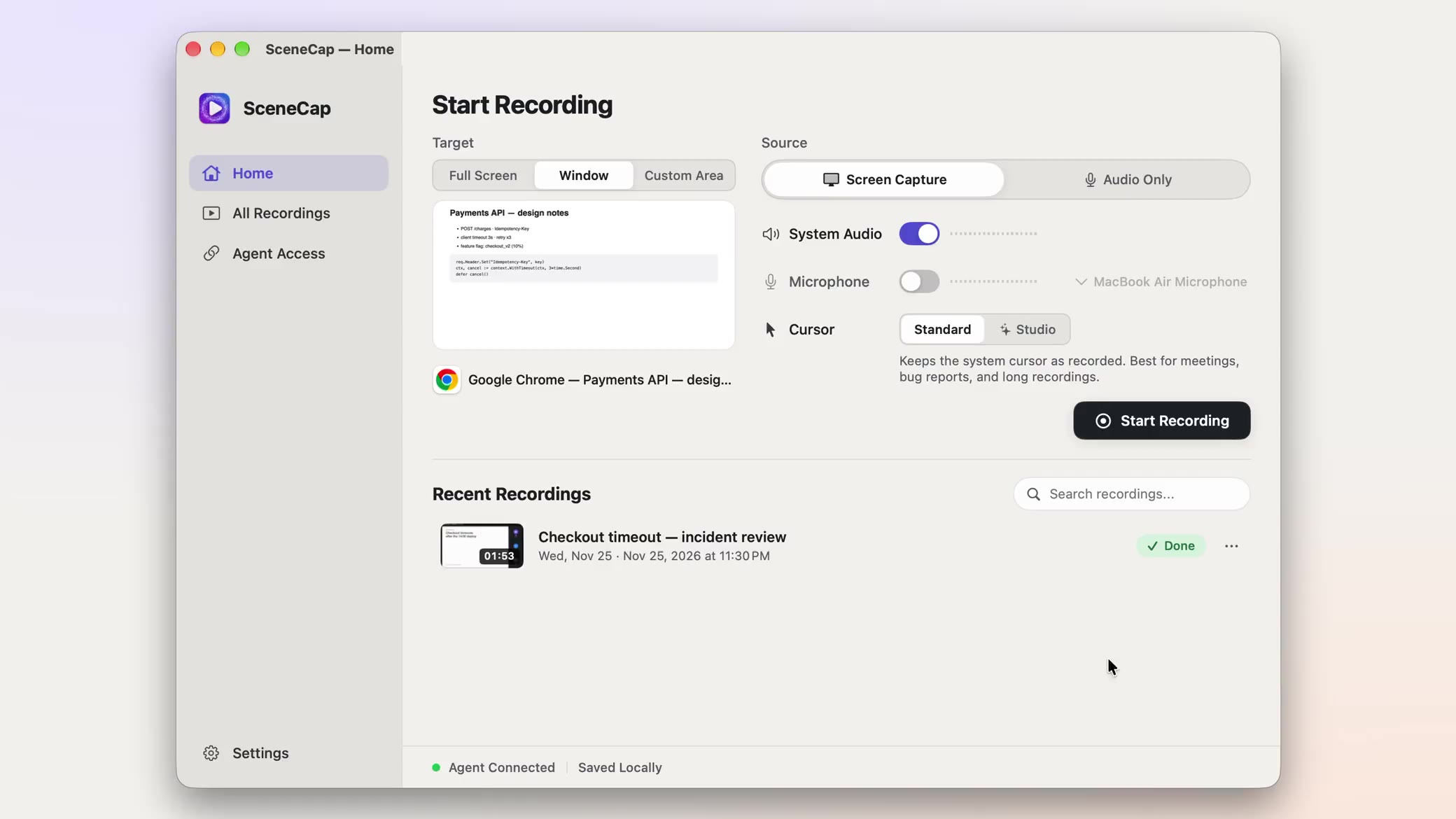
- Pick a mode: Full Screen, Window, Custom Area, or Audio Only.
- Turn on System Audio, and Microphone if you want your voice.
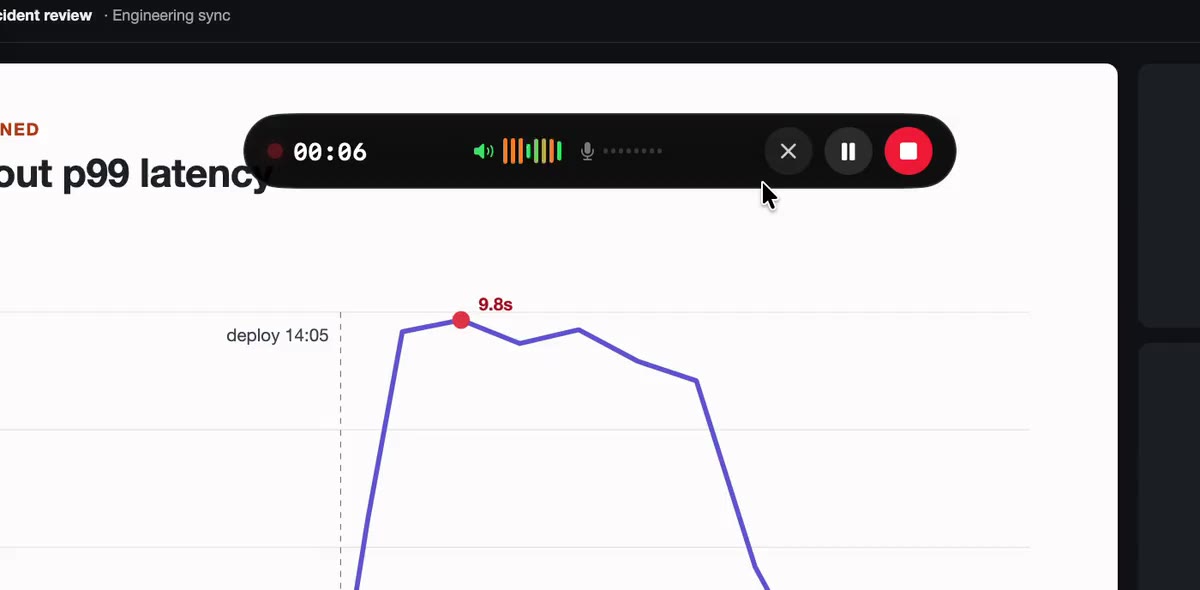
- While recording, the floating HUD shows a live waveform for each track, and you can pause anytime.
- Afterwards, transcribe on your Mac with WhisperKit.
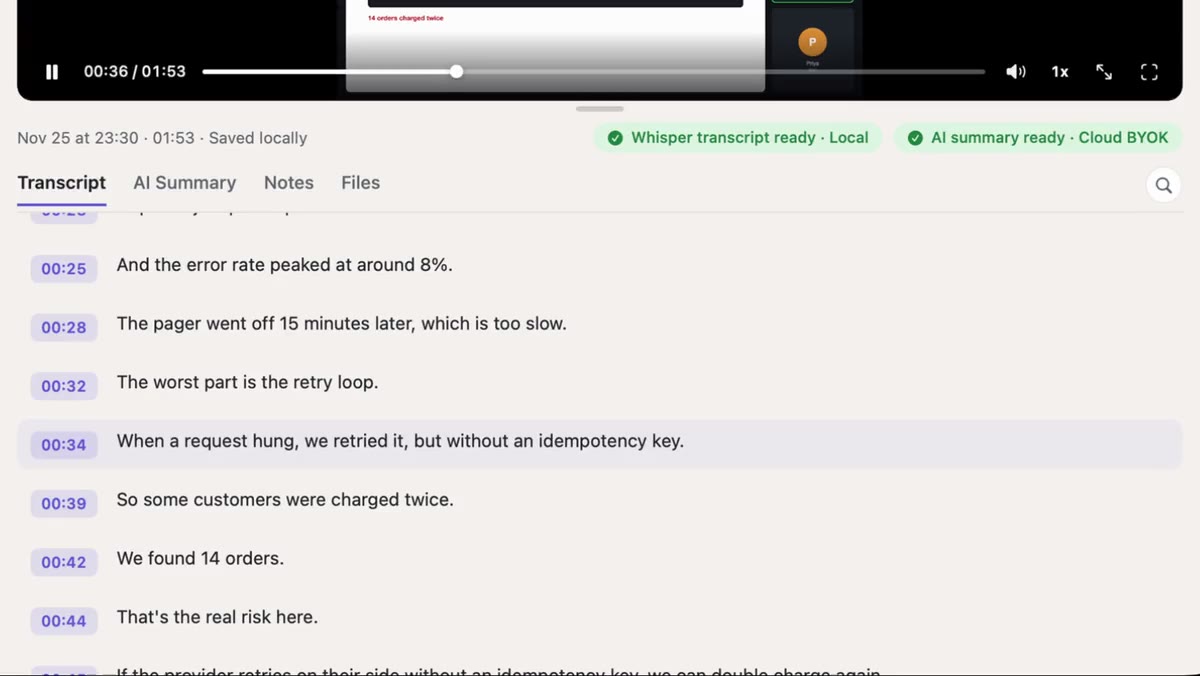
Comparison
| SceneCap | macOS 27 built-in | BlackHole | |
|---|---|---|---|
| macOS version | 14+ | 27+ | Any |
| No driver to install | Yes | Yes | Multi-Output setup |
| Audio only | Yes | No | With a recorder app |
| Meters & pause | Yes | No | Depends on app |
| Offline transcript | Yes | No | No |
Permissions
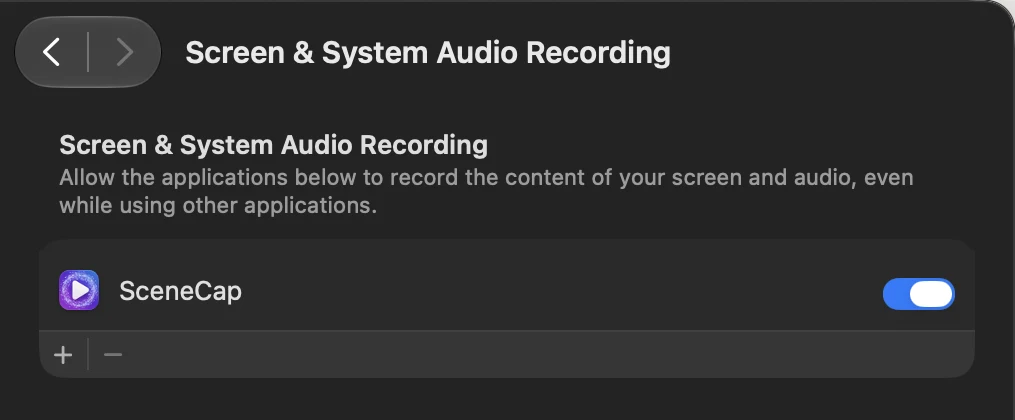
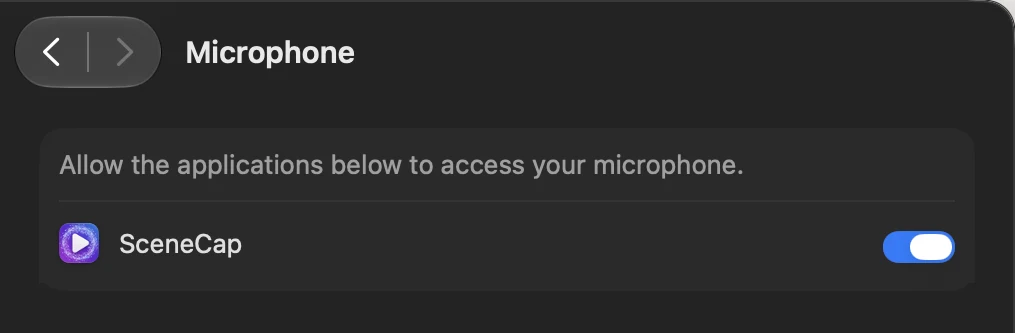
In System Settings → Privacy & Security, turn on Screen & System Audio Recording, and Microphone if you record your voice. Quit (⌘Q) and reopen the app afterwards.
No sound, or an echo?
- Built-in tool missed the audio: Make sure Include System Audio is checked in Options. macOS 26 and earlier don’t have it.
- SceneCap missed app audio: Check that System Audio is on and the permission is granted; after changing it, press
⌘Qand reopen. - Your voice is missing: Check the Microphone switch, the input device and the Microphone permission.
- Echo: Wear headphones.
FAQ
macOS 27 records system audio already—do I still need SceneCap?
For an occasional clip, the built-in tool is enough. For audio only, pause, live meters or transcripts, SceneCap is easier.
Do I need BlackHole?
No. Both the macOS 27 built-in tool and SceneCap (macOS 14+) record system audio directly.
Are my recordings uploaded?
No. Recordings and transcripts stay on your Mac; only if you choose a cloud AI summary is the transcript sent, with your own API key. See the privacy policy.
Related: Record Zoom, Meet and Teams without a meeting bot · Apple: screen & system audio recording access